My code says invalid.
It may be used or expired. Do not keep retrying it. Email the Lakeview team for a new employee code.
Lakeview employee app
This page is for authorized employees. It gives your Chrome profile access to the shared verification codes that an administrator has enabled for your work.
Before you begin
This temporary setup method uses Chrome's Developer mode while the normal Store release is being reviewed. Do not use a phone, tablet, Guest window, or Incognito window.
What you will see
The pictures use fictional examples. Never send a screenshot containing a real code, QR image, password, or patient information.
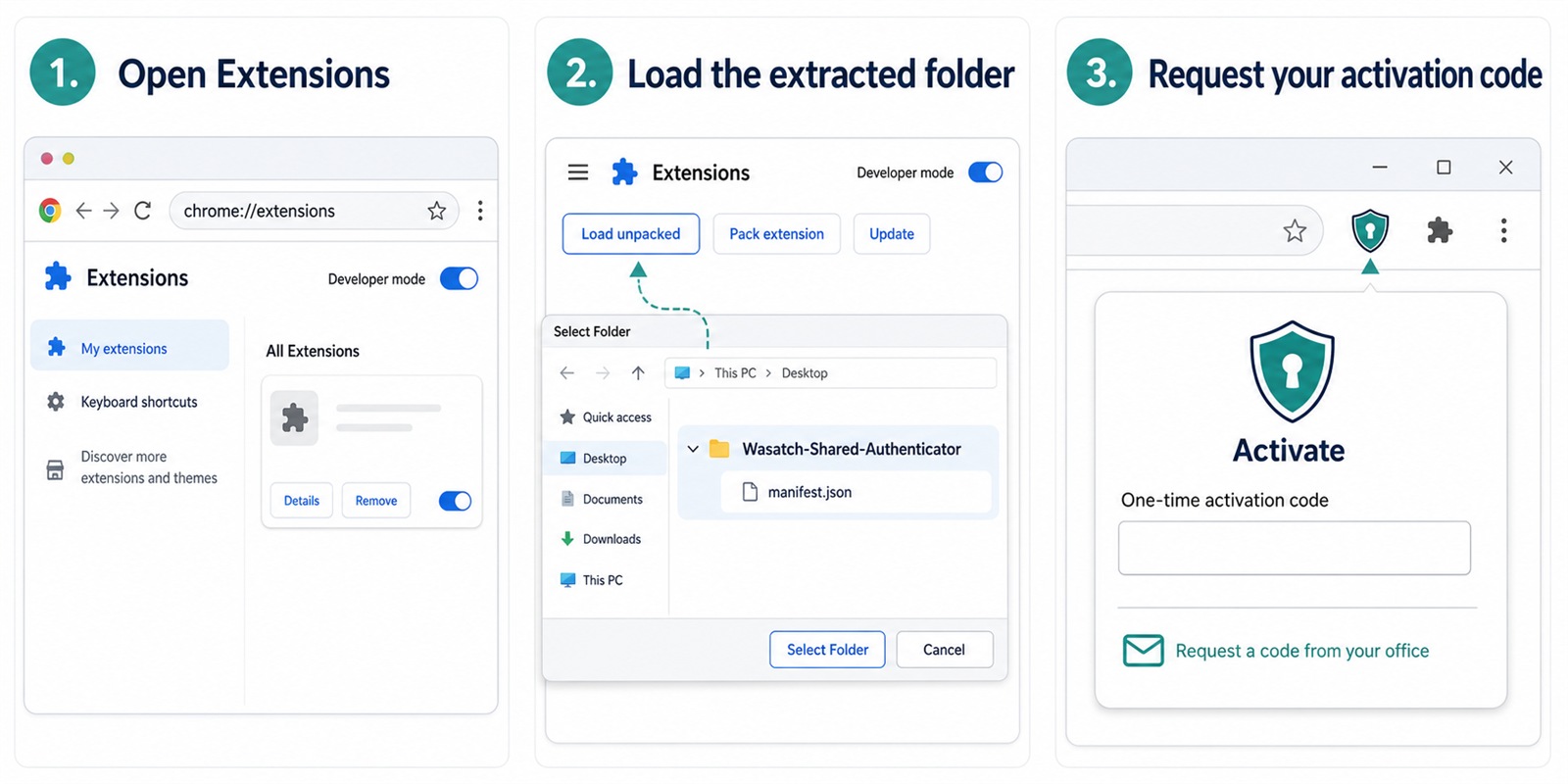
First-time setup
Do not request your code until you reach step 6. Codes are short-lived and work only once.
Click Download Employee Setup. If Chrome asks where to save it, choose Downloads.
Open your Downloads folder. Right-click Wasatch-Shared-Authenticator-Employee-Setup-1.0.0.zip, choose Extract All, then choose Extract.
In Chrome's address bar, type chrome://extensions, then press Enter.
At the top-right of the Extensions page, switch Developer mode on. If the switch is missing or locked, stop and email the Lakeview team.
Click Load unpacked. Open the folder you extracted in step 2, then click Select Folder. Choose the folder that contains manifest.json—not the ZIP file.
Click the Extensions puzzle-piece icon beside Chrome's address bar, find Wasatch Shared Authenticator, and click it. Then email [email protected] to request a one-time employee activation code.
In the email, include your name and the name you want to use for this computer or Chrome profile. Do not include a password, verification code, QR image, patient information, or a screenshot of a portal.
When the Lakeview team gives you a one-time code, type it into the extension. Enter the same clear computer or profile name you used in your request, then click Activate.
Click Chrome's Extensions puzzle-piece icon, then click the pin beside Wasatch Shared Authenticator. It will stay beside the address bar.
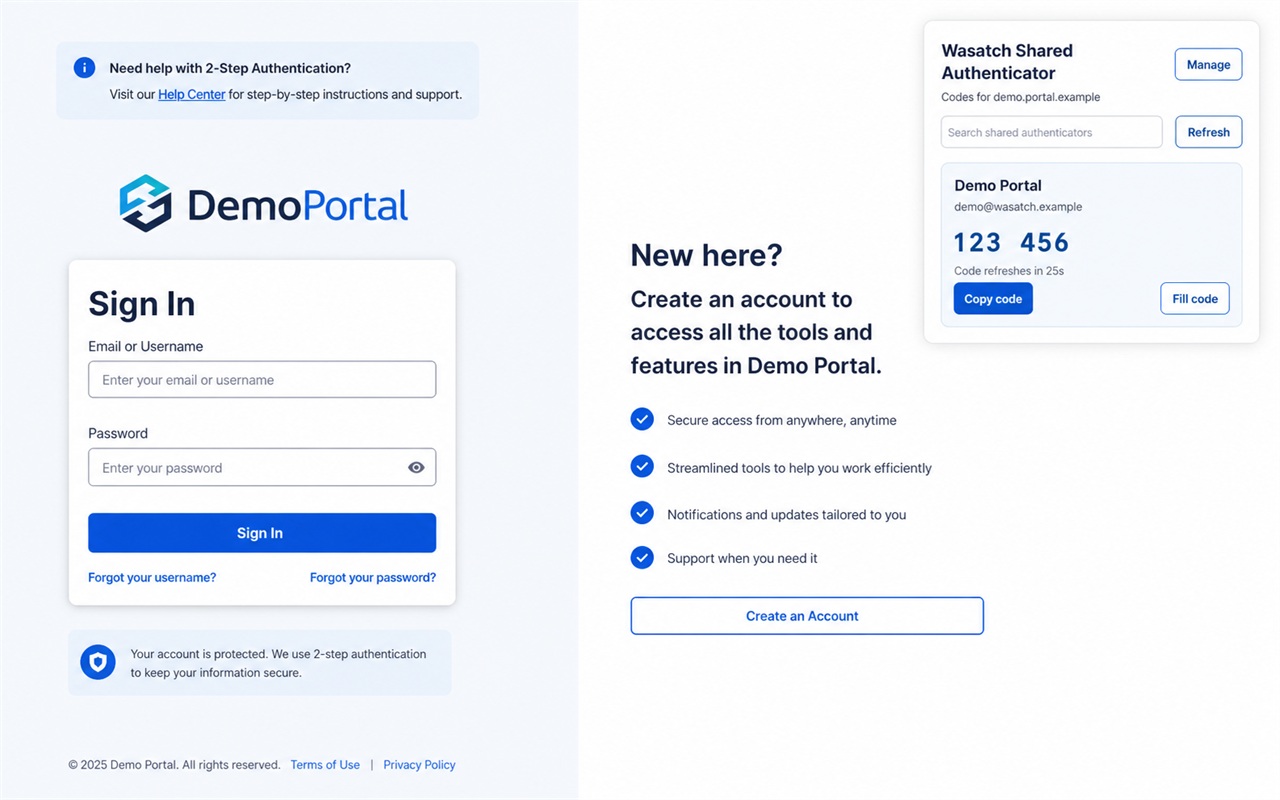
After activation
Open the extension while the matching portal tab is open. Choose Copy code to paste it yourself, or Fill code only when you want Chrome to fill the selected verification-code box.
Need help?
It may be used or expired. Do not keep retrying it. Email the Lakeview team for a new employee code.
Your Chrome browser may be managed. Stop there and email the Lakeview team. Do not try to change a work computer's security settings.
Only codes enabled for employees appear here. Ask an administrator whether the authenticator should be made available to your role.
Ready to start?
Extract it, load the folder in Chrome, then request your one-time employee activation code.